
Parts
Dimensions
Parts inherit their starting dimensions from the project item.
For example, a project item that is:
300mm × 300mm × 300mm
with:
6mm material thickness
will create parts that are generally based on the project item dimensions, with the part thickness coming from the material thickness.
So a basic top, bottom, side, front, or back panel starts from the overall size of the project item.
Relative Sizing
By default, parts use relative sizing.
Relative sizing means the part is sized as a percentage of the project item dimensions.
For example, the top of a box might be:
Width: 100% Length: 100%
That means the top is 100% of the project item width and 100% of the project item length/depth.
If you change the project item width, the top changes with it.
If you change the project item length, the top changes with it.
This is useful because the part stays connected to the overall design.
Thinking in the Part’s Plane
Part dimensions are easiest to understand when you imagine looking directly at the part.
Each part has two main face dimensions:
- Its width across the part
- Its length/height along the part
Which project item dimensions affect the part depends on the plane the part is facing.
For example:
- A top panel uses the project item width and length/depth
- A front panel uses the project item width and height
- A side panel uses the project item length/depth and height
So when you change a project item dimension, it affects the parts that use that axis.
It can feel a little confusing at first, but the simple version is:
The part inherits the dimensions of the face it belongs to.
Scaling a Part Relative to the Item
Relative values can also be larger or smaller than 100%.
For example:
Width: 150%
means the part is 1.5 times the related project item dimension.
So if the project item width is:
300mm
then a part width of:
150%
becomes:
450mm
This is useful for overhangs, oversized panels, decorative faces, or parts that need to extend beyond the normal box shape.
Thickness
Part thickness is inherited from the project item’s material settings.
For example, if the project item material is:
12mm plywood
then the parts use:
12mm thickness
unless you override the thickness on a specific part.
You might override thickness when one part uses a different material.
For example:
Project item material: 12mm plywood Top panel thickness: 18mm
This lets the main project use one material thickness while a single part uses another.
Absolute Sizing
Absolute sizing lets you set the exact size of a part.
Instead of saying:
Width: 100%
you can say:
Width: 300mm
or:
Width: 450mm
Absolute sizing is useful when a part needs to be an exact measurement, regardless of the project item’s overall dimensions.
Switching Between Relative and Absolute
You can switch a part between relative and absolute sizing.
When you switch back to relative sizing, the percentages should reflect the part’s current size compared to the project item.
So a part can be controlled either as:
A percentage of the project item
or:
An exact size
Use whichever makes more sense for the part you are editing.
When to Use Each
Use relative sizing when the part should resize with the project item.
Good for:
- Standard box panels
- Drawer sides
- Tops and bottoms
- Parts that should stay proportional
- Designs that may be resized later
Use absolute sizing when the part needs to stay a specific size.
Good for:
- Fixed-size panels
- Inserts
- Lids
- Decorative faces
- Parts using a different material
- Custom components that should not scale with the overall item
Scaling Axis Handles
When you are in dimension mode, you will also see three colored axis handles.
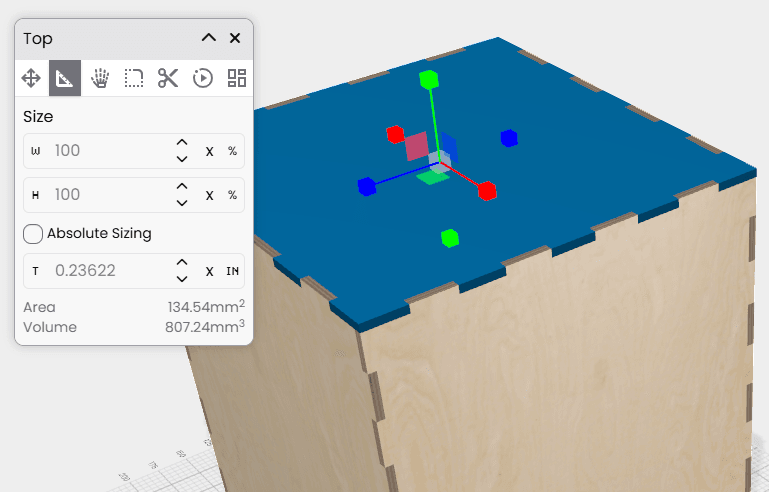
These let you sclale the part along an axis:
- Red for X
- Green for Y
- Blue for Z
Click and drag an handle to move the size along that direction.
The Main Idea
Project item dimensions define the overall size of the object.
Part dimensions define how each physical piece relates to that size.
Most parts start relative, so they resize automatically. When you need exact control, switch to absolute sizing and enter the dimensions directly.